Google Docs, Microsoft Word, and PowerPoint can all read your text out loud — but each hides the feature somewhere different, calls it something different, and stops working exactly where you'd want it most.
Here's the complete map: every built-in read-aloud option in the big three, the honest limits of each, and the workflow for when the built-in voice isn't good enough to put in front of an audience.
What you'll learn:
- The 2025 change that finally gave Google Docs a real listen button
- Word's two hidden speech features (and the shortcut nobody knows)
- Why PowerPoint TTS fails during live presentations — and what works instead
- How to turn any document into a natural-voice MP3 you can keep
The 30-Second Capability Map
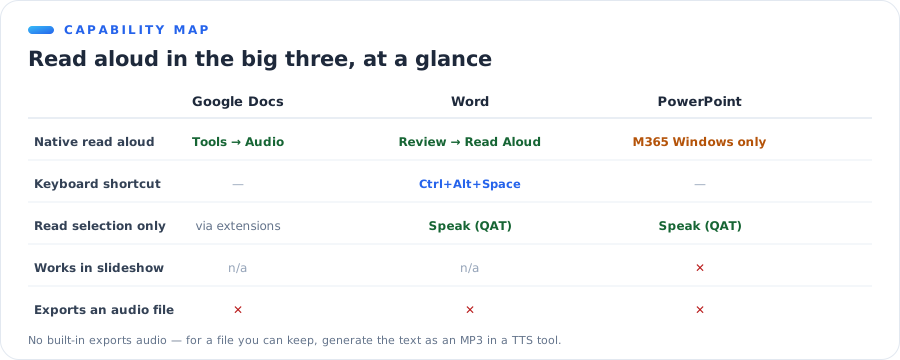
| Google Docs | Microsoft Word | PowerPoint | |
|---|---|---|---|
| Native read aloud | ✅ Tools → Audio (2025+) | ✅ Review → Read Aloud | ⚠️ Review → Read Aloud (M365 Win) |
| Read selected text only | Via extensions | ✅ Speak (QAT) | ✅ Speak (QAT) |
| Keyboard shortcut | — | Ctrl + Alt + Space | — |
| Works in live slideshow | — | — | ❌ Not really |
| Export audio as a file | ❌ | ❌ | ❌ |
| Languages | English-only (native) | Many | Many |
Two patterns worth noticing before we go app by app: nothing exports a file, and everything is built for the editor, not the audience. Both matter later.
Text to Speech in Google Docs
The native way: Tools → Audio (2025 and later)
For years the honest answer was "Docs can't." That changed when Google rolled out audio in Docs via Gemini:
- Open your document in a desktop browser.
- Go to Tools → Audio → Listen to this tab.
- A player appears with play/pause and speed controls.
The catches, as of now:
- English-only.
- Desktop-only — no mobile app support.
- Availability depends on your account tier, so many users still don't see the menu item.
The screen-reader route
The older method still works everywhere: Tools → Accessibility → turn on screen reader support, then use your OS reader (Narrator, VoiceOver, ChromeVox) to read the document. It's reliable but sounds like a screen reader, because it is one. If a narrator gets stuck on after this, our turn text to speech on or off guide has every off switch.
Extensions
Chrome Web Store read-aloud extensions add a sidebar player with voice and speed options. Fine for personal listening; check reviews and permissions before installing anything that can read your documents.
Which route should you use?
- Just want to hear your draft? → Tools → Audio, if you have it.
- Non-English document? → extension or external TTS.
- Want to keep the audio? → none of the above; see the MP3 route.
Text to Speech in Microsoft Word
Word is the best of the three — it has two speech features, and most people have found neither.
Read Aloud: the main event
- Where: Review tab → Read Aloud.
- Shortcut: Ctrl + Alt + Space starts and stops it.
- What it does: reads from your cursor onward, audiobook-style, with a floating control for speed and voice selection.
It's in Microsoft 365 and Word 2019+, uses the newer neural voices on current builds, and is genuinely pleasant for proofreading — hearing your own typo is faster than seeing it.
Speak: the older, sniper-style feature
Speak reads only the text you select — nothing more. It's hidden by default:
- Right-click the Quick Access Toolbar → Customize Quick Access Toolbar.
- Choose commands from: All Commands → find Speak → Add.
- Select any text, click the Speak icon.
💡 Pro tip: Speak is the better proofreading tool for single sentences; Read Aloud is better for whole documents. Set up both — they don't conflict.
Immersive Reader: the version built for focus
Word has a third reading mode most people scroll past: View tab → Immersive Reader. It reformats the page for readability — line focus, syllable breaks, adjustable spacing — and includes its own Read Aloud controls at the bottom.
It exists for dyslexia and focus support, but it's quietly the best proofreading environment Word has: one line highlighted at a time, read aloud, nothing else on screen.
Changing the Read Aloud voice
The voice picker hides behind the small settings (gear) icon on the Read Aloud toolbar — speed slider on top, voice dropdown below. Current Microsoft 365 builds include neural voices that are dramatically better than the legacy ones; if your Read Aloud sounds dated, check that dropdown before blaming the feature.
Word on mobile
The mobile apps route through your phone's accessibility reader (Speak Screen on iOS, Select to Speak on Android) rather than shipping their own button.
Text to Speech in PowerPoint
PowerPoint is where expectations and reality diverge hardest — because what people actually want is a talking presentation, and the built-in features don't do that.
What exists: Read Aloud and Speak
- Microsoft 365 on Windows: Review tab → Read Aloud, same as Word.
- Everything else: the same hidden Speak command, added via Quick Access Toolbar exactly as in Word, reading whatever slide text you select.
Both work in the editing view. Useful for checking slide copy; not what the audience hears.
The live-presentation problem
Search data shows people specifically asking how to enable TTS during live presentation mode — and the honest answer is that PowerPoint doesn't support it. In Slide Show mode, Read Aloud isn't part of the flow, and triggering system narration mid-deck reads UI elements, not your script.
What actually works for a presentation that talks:
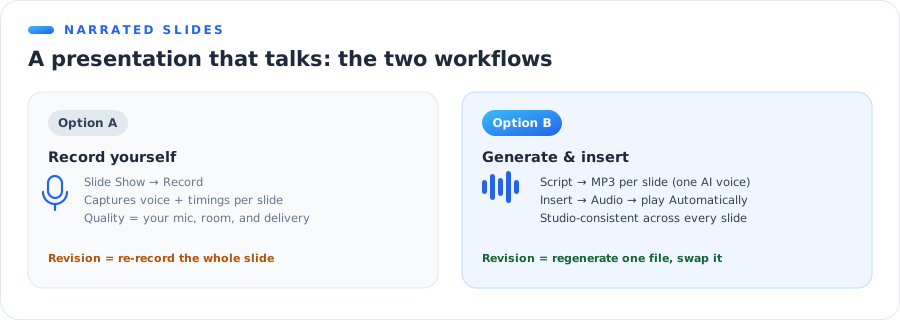
Option A: record narration
Slide Show → Record captures your voice (and timings) per slide. Free, personal, and exactly as good as your microphone, your room, and your delivery that day.
Option B: generate narration and insert it
- Write each slide's script.
- Generate it as MP3s with an AI text to speech tool — one file per slide, one consistent voice.
- Insert → Audio → Audio on My PC, set playback to Automatically, and hide the icon during show.
The generated route wins on revision day: change one sentence, regenerate one file, swap it — no re-recording session, no matching yesterday's energy.
Bonus: Outlook, Excel, and OneNote
The same two Microsoft features quietly extend across the rest of Office, which saves you re-learning anything:
Outlook
Read Aloud lives in the Message tab when reading an email — useful for triaging long threads by ear. The same Ctrl + Alt + Space habit carries over.
Excel
Excel's version is called Speak Cells, and it's QAT-hidden like Speak in Word:
- Right-click the Quick Access Toolbar → Customize → All Commands.
- Add Speak Cells (plus Speak Cells on Enter if you want read-back as you type).
- Select a range, click the icon, and Excel reads the values row by row.
Accountants use Speak Cells on Enter as a proofing tool — the spreadsheet reads each entry back while their eyes stay on the paper source. It's the closest thing Office has to a built-in double-entry check.
OneNote
Same Immersive Reader as Word (View tab), same behavior — handy for reviewing meeting notes hands-free.
The Honest Limits of Built-In Read Aloud
All three apps share the same ceiling, and it's worth naming plainly:
- No export. Read Aloud plays audio; it never saves it. There is no file to put in a video, a podcast, or an email.
- System voices. Word's neural voices are decent; Speak and the screen-reader routes are unmistakably robotic.
- Editor-bound. Everything works at your desk, nothing works in front of an audience.
- Language gaps. Docs' native audio is English-only; voice quality in other languages varies wildly across the built-ins.
For you listening to your own draft, none of this matters — use the built-ins freely. The moment the audio is meant for someone else, you've outgrown them.
Turning a Document into Audio You Can Keep
The pattern for all three apps is the same, and it takes about two minutes:
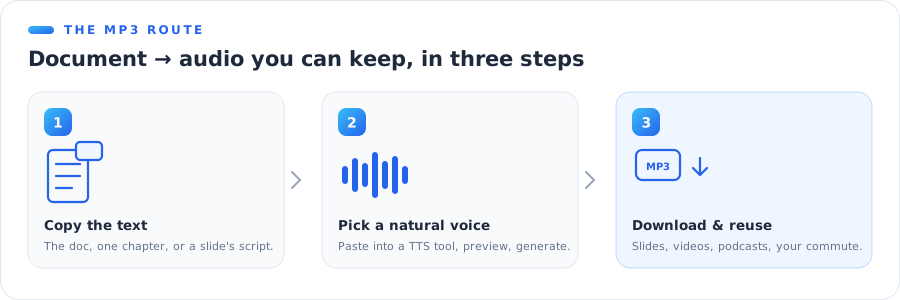
- Copy the text — the document, the chapter, or one slide's script.
- Paste it into a TTS generator and pick a natural voice. Our free text to speech tool needs no account for quick jobs; the full studio adds premium voices and long-script handling.
- Download the MP3 and use it anywhere: inserted per-slide in PowerPoint, as a narration track in a video editor, or straight to your phone for the commute.
A few pairings that come up constantly:
| You have | You want | Do this |
|---|---|---|
| A report in Docs/Word | Listen during commute | Generate MP3, save to phone |
| A deck | Self-running narrated slideshow | One MP3 per slide, auto-play |
| A script in Docs | Video voiceover | Generate MP3, import to your editor — CapCut guide here |
| Course slides | E-learning module | Per-slide MP3s, consistent voice throughout |
And if the narration should sound like you without you recording it, that's voice cloning — one sample, then every document you ever paste speaks in your voice.
When Read Aloud Misbehaves: Quick Fixes
Three failures cover nearly every complaint about Office read-aloud features:
"Read Aloud is grayed out or missing"
You're on an older build or the wrong app edition. Read Aloud needs Microsoft 365 or Word 2019+; in PowerPoint it's Microsoft 365 on Windows specifically. The Speak command via Quick Access Toolbar is the universal fallback — it goes back over a decade of Office versions.
"It reads the wrong thing or skips text"
Read Aloud starts from the cursor, not the top — click where you want it to begin. Text inside tables, text boxes, and headers is read in document order, which sometimes differs from visual order; Speak (read-the-selection) is the workaround when order matters.
"The voice suddenly changed or sounds worse"
Neural voices stream from Microsoft's servers; offline, Office falls back to the local system voice, which is noticeably flatter. If the voice degraded mid-session, check your connection first — then the voice dropdown in Read Aloud's gear menu.
"It keeps starting by itself"
That's not Read Aloud — that's a system narrator you've toggled by accident. The full guide to turning text to speech on or off has the shortcut list; Win + Ctrl + Enter on Windows is the usual culprit.
The Bottom Line
Every Office app can now read to you: Docs via Tools → Audio, Word via Review → Read Aloud (or Ctrl + Alt + Space), PowerPoint via Read Aloud or the hidden Speak command. For private proofreading, they're all you need.
For audio that leaves your desk — narrated decks, voiceovers, listenable documents — generate a real voice file instead. Two minutes of copy-paste beats an hour of fighting features that were never built for an audience.
Turn any document into a natural voice — free, no sign-up. Paste your text, pick a voice, download the MP3. Try free text to speech →