Yes — CapCut has built-in text to speech, it's free, and it lives three taps away from your text layer. Type your script as a text element, select it, hit Text-to-speech, pick a voice, done.
That's the answer to the question. It is not, however, the end of the story.
Because the next three questions arrive immediately: why can't I find it on my Mac, am I allowed to use this voice in a monetized video, and why does my narration sound like everyone else's TikTok. CapCut's own help pages answer none of these well — so this guide does.
What you'll learn:
- Where the text-to-speech button actually is on mobile, desktop, and web
- Why the feature is missing on some Macs, and the two workarounds
- The commercial-license catch almost nobody mentions
- Six fixes for "text to speech not working"
- How to import a better voice when the built-in list isn't enough
Does CapCut Have Text to Speech? (Quick Answer)
CapCut offers text to speech on every major platform — but not identically. The feature set, the voice list, and even the button's existence vary by platform, region, and app version.
Here's the honest availability picture:
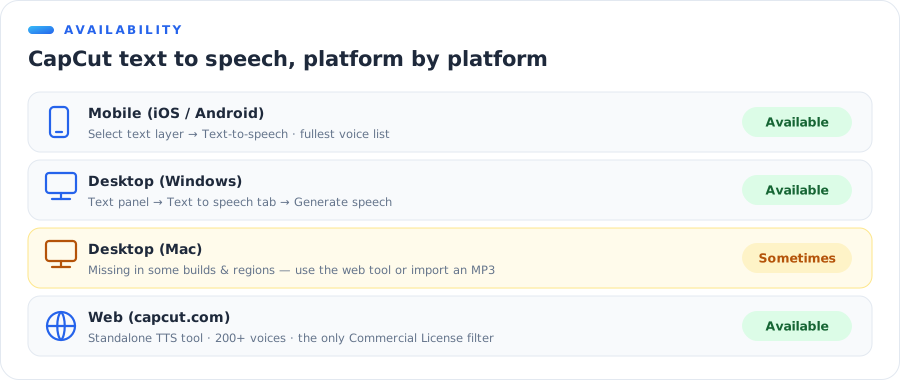
| Platform | Text to speech? | Where it lives | Notes |
|---|---|---|---|
| Mobile (iOS/Android) | ✅ Yes | Select text layer → Text-to-speech | Fullest voice list |
| Desktop (Windows) | ✅ Yes | Text panel → Text to speech tab | Batch-friendly |
| Desktop (Mac) | ⚠️ Sometimes | Same as Windows — when present | Missing in some builds/regions |
| Web (capcut.com) | ✅ Yes | Standalone TTS tool | 200+ voices, license filter |
Two things in that table deserve emphasis.
First: the web tool is a separate product from the in-editor feature. CapCut's online TTS tool advertises 200+ voices — more than the editor shows — and it's the only place with an explicit commercial-license filter.
Second: "sometimes" on Mac is not a typo. We'll get to it.
How to Add Text to Speech in CapCut on Mobile
The mobile app is where CapCut's TTS feels most at home — it's the same flow millions of TikTok creators use daily.
Step 1: Add your text layer
Open your project, tap Text → Add text in the bottom toolbar, and type or paste your script. Style it however you like — the styling won't affect the voice.
Step 2: Select the layer and tap Text-to-speech
With the text layer selected, scroll the bottom toolbar until you see Text-to-speech. Tap it.
If you don't see the option, tap the text layer first — the button only appears while a text element is selected. This single detail causes most "CapCut doesn't have TTS" complaints.
Step 3: Pick a voice and generate
A voice list appears, grouped by style and language. Tap any voice for an instant preview, then confirm. CapCut generates the audio and drops it onto your timeline as a linked track.
Step 4: Decide what happens to the text
CapCut asks whether to keep the text on screen or generate voice only. Keeping it doubles as free captions; voice-only is cleaner for narration over B-roll.
💡 Pro tip: generate speech before fine-cutting your visuals. AI narration rarely matches the pacing you imagined while writing — trimming clips to the voice is much faster than re-generating the voice to fit clips.
How to Add Text to Speech in CapCut on Desktop
The Windows flow
The desktop version moves the feature into the text inspector:
- Click Text → Add text and enter your script on the timeline.
- With the text clip selected, look at the right-hand panel and open the Text to speech tab.
- Choose a voice, click Generate speech, and a new audio clip appears under your text.
Desktop is noticeably better for longer projects: you can duplicate text clips, edit each one's script, and regenerate voices without touching your phone keyboard.
Why you can't find it on Mac
This is one of the most-searched CapCut TTS questions, and the answer from CapCut is essentially silence. The reality, confirmed across user reports and tutorial sites: some Mac builds and regions simply don't show the text-to-speech panel, and CapCut changes feature availability between versions without announcements.
If your Mac build has no TTS option, you have two real workarounds:
Workaround 1: use CapCut's web tool
Open the online text to speech tool in a browser, generate your audio there, download it, and import it into your Mac project. Same account, same ecosystem, no missing panel.
Workaround 2: generate an MP3 anywhere and import it
Any TTS tool that exports MP3 works — including our free text to speech, which needs no account. Generate, download, drag into CapCut. The import workflow is covered in detail below, because it's also the answer to a bigger problem than Mac availability.
CapCut's Voices: What You Get — and the License Catch
The voice list
CapCut's built-in voices skew heavily toward short-form social content: energetic narrators, meme voices, character effects, and the familiar TikTok announcer styles. That's not an accident — CapCut and TikTok share a parent company, and the voice DNA is common to both (our TikTok text to speech voices guide maps that side of the family).
The lineup varies by region and changes without notice. A voice in a tutorial from three months ago may not exist in your app today. The in-app picker is the only reliable catalogue.
For a quick reference, the built-in library breaks down roughly like this:
| Voice type | Good for | Weak at |
|---|---|---|
| Social narrators | TikTok/Reels/Shorts pacing | Long-form warmth |
| Meme & character voices | Comedy, trends | Anything serious |
| Standard male/female reads | Basic voiceover | Emotional range |
| Non-English voices | Regional content | Consistency across languages |
The commercial-license catch
Here's the part most tutorials skip entirely.
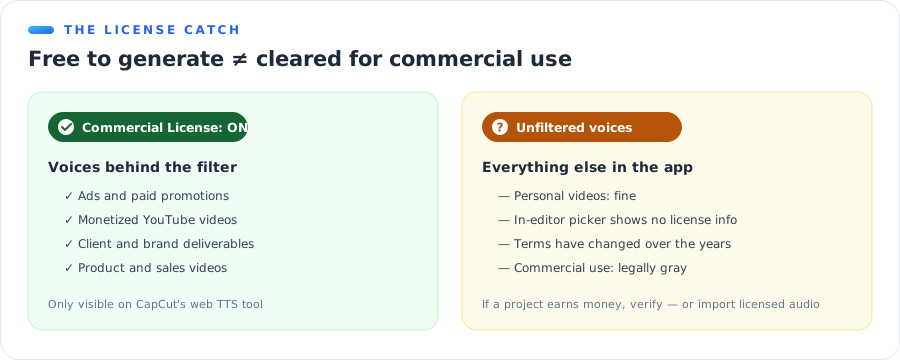
On CapCut's web TTS tool, there's a Commercial License filter — you can toggle it to show only voices cleared for commercial use. Read that again: the filter exists because not every voice is cleared for commercial projects.
For a hobby video, this doesn't matter. For a monetized YouTube channel, a client deliverable, or an ad, it matters a great deal:
- Cleared voices (Commercial License filter on): usable in ads, product videos, brand content.
- Everything else: legally gray for commercial work. CapCut's terms have shifted over the years, and "it was free in the app" is not a licensing answer a client will accept.
⚠️ Watch out: the in-editor voice picker on mobile and desktop doesn't surface license status the way the web tool does. If a project earns money, either verify the voice through the web tool's filter — or sidestep the question with audio from a TTS service that grants commercial rights explicitly, the way AnyVoice's paid plans do.
CapCut Text to Speech Not Working? 6 Fixes
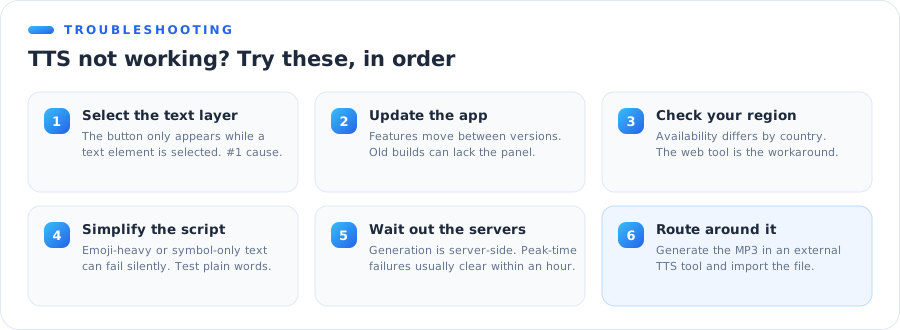
When the button is missing or generation fails, run down this list in order — it's sorted by how often each fix works. (Opposite problem — a narrator you want silenced? That's our guide to turning text to speech on or off.)
Fix 1: Select the text layer first
The Text-to-speech option only appears while a text element is selected. Tap the layer, then look again. This is the number-one cause.
Fix 2: Update the app
CapCut moves features between versions constantly. An outdated build can lack voices — or the whole panel.
Fix 3: Check your region
Feature availability differs by country. If a tutorial shows an option your app lacks, region is the likely reason. The web tool is the workaround.
Fix 4: Simplify the script
Scripts made mostly of emoji, symbols, or unsupported characters can fail silently. Try a plain-text sentence; if that works, reintroduce your script gradually.
Fix 5: Wait out the servers
Generation happens on CapCut's servers. Peak-time failures with no error message usually resolve themselves within the hour.
Fix 6: Route around it
If nothing above works, stop fighting the app: generate the audio externally and import it. Which brings us to the workflow that solves Mac gaps, license doubts, and voice-quality ceilings in one move.
Better Voices: Generate the Audio Outside and Import It
CapCut's built-in voices are optimized for one thing: sounding like social media. The moment your project needs a documentary narrator, a warm course instructor, or simply a voice your audience hasn't heard in ten thousand TikToks, the built-in list runs out.
The fix isn't leaving CapCut — it's separating the voice from the editor.
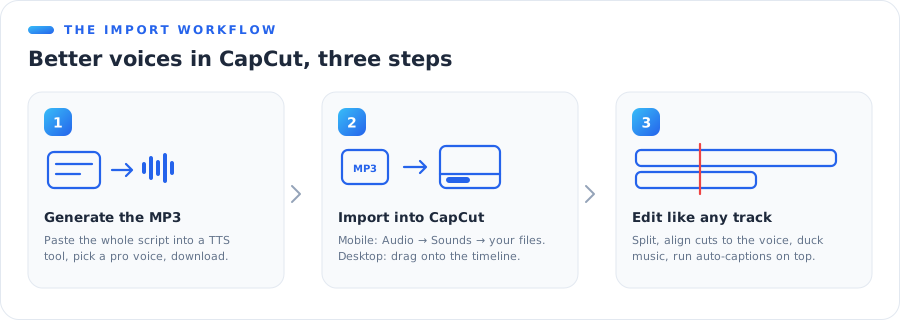
The 3-step import workflow
Step 1: Generate your narration as an MP3
Paste your full script into a dedicated TTS tool and export one audio file. Our text to speech MP3 generator is built for exactly this handoff — type, pick a professional voice, download the MP3. For quick tests, the free tool works without an account.
One practical advantage over CapCut's layer-by-layer generation: a dedicated tool reads your entire script in one take, with consistent pacing — no stitching twelve tiny clips together.
Step 2: Import the file into CapCut
- Mobile: Audio → Sounds → the your files / device tab → select your MP3.
- Desktop: drag the file straight into the media panel or timeline.
Step 3: Edit it like any audio track
Split it at sentence boundaries, align your cuts to it, duck it under music, add CapCut's auto-captions on top. Imported narration is a first-class citizen on the timeline.
💡 Pro tip: if you want captions that match the narration exactly, run CapCut's auto-captions on the imported audio rather than re-typing your script — you get word-level timing for free.
When the built-in voices are enough
Honesty cuts both ways. If your video is a trend-format TikTok where the TTS voice is part of the joke, use CapCut's built-in voice — the familiarity is the point. The import workflow earns its extra step when the content is yours: courses, client work, YouTube explainers, anything monetized, anything longer than a minute.
CapCut TTS vs. a Dedicated Text to Speech Tool
The honest comparison, feature by feature:
| CapCut built-in | Dedicated TTS (e.g. AnyVoice) | |
|---|---|---|
| Price to start | Free | Free tier |
| Voice style range | Social-first | Narration, ads, e-learning, podcasts |
| Long scripts | One layer at a time | Whole script, one take |
| Commercial rights | Per-voice, filter on web only | Explicit on paid plans |
| Your own voice | ❌ | ✅ via AI voice cloning |
| Works when CapCut's TTS doesn't | — | Always (import as MP3) |
The last row is the practical summary of this whole guide: an external MP3 is the one answer that works regardless of platform gaps, region locks, license doubts, or server hiccups.
If you're weighing this choice for a bigger project, our comparison of voice cloning vs text to speech covers when a generic voice is enough and when you want your own.
The Bottom Line
CapCut's text to speech is real, free, and genuinely good at the thing it was built for: fast social videos in the house style. Use it freely there.
For everything else — Mac editors staring at a missing panel, monetized channels that need clean licensing, scripts longer than a caption, or just a voice with more range — generate the audio outside and import it. The workflow takes three steps and removes every limitation in one move.
Generate your narration as an MP3 — free, no account needed. Type your script, pick a professional voice, download, and drop it into CapCut. Try the text to speech MP3 generator →