Something on your screen is talking, and you want it to stop. The fix is always one toggle — the problem is that every game, app, and operating system hides that toggle somewhere different.
This guide is the master list. Find your platform, flip the switch, done. And if you're here for the opposite reason — you want your device to read to you — the turning it on section covers that too.
What you'll learn:
- The 10-second diagnosis: which of the three "voices" is actually talking
- Exact off switches for Battlefield 6, Minecraft, Discord, Windows 11, Mac, iPhone, and Android
- The shortcut cheat sheet (most narrators toggle with one key combo)
- How to turn text to speech on in Word, Google Docs, and your phone
First: Which Voice Is Talking? (10-Second Diagnosis)
Before hunting through menus, identify the layer the voice lives on. There are only three:
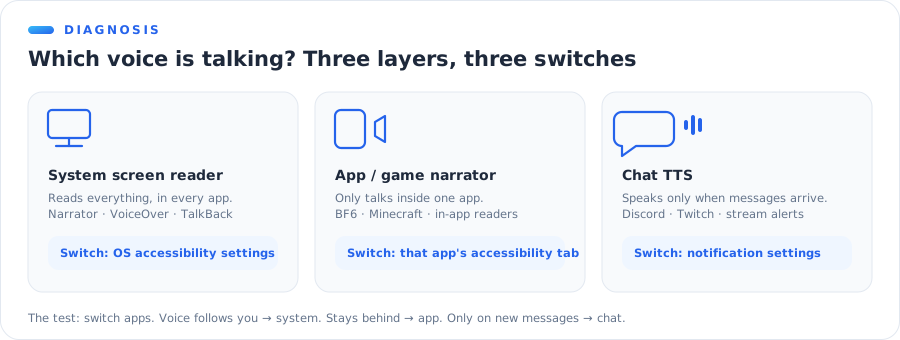
| Layer | How it sounds | Where the switch is |
|---|---|---|
| System screen reader | Reads everything — menus, buttons, every app | OS accessibility settings |
| App/game narrator | Only talks inside one game or app | That app's accessibility settings |
| Chat TTS | Reads incoming messages aloud | The chat app's notification settings |
The quick test: switch to another app. If the voice follows you, it's the system layer. If it stays behind, it's the app. If it only pipes up when messages arrive, it's chat TTS.
💡 Pro tip: system screen readers are almost always triggered by accident via keyboard shortcut — which means the same shortcut turns them off. Check the cheat sheet before digging through settings.
Turning Text to Speech Off in Games
Battlefield 6
BF6 ships with menu narration on by default for some players, which is why "how to turn off the talking voice" spiked the week it launched.
- From the main menu, open Settings (gear icon).
- Go to the Accessibility tab.
- Set Menu Narration (Screen Reader) to Off.
Two related toggles live nearby:
- Text chat to speech — if enemy trash talk is being read aloud mid-match, this is the one.
- The path is identical on PC, PlayStation, and Xbox.
Minecraft
Minecraft's narrator has the most famous accidental trigger in gaming: Ctrl + B, one key away from common shortcuts.
Java Edition
- Fastest: press Ctrl + B repeatedly — it cycles narrates all → chat → system → off.
- Via menus: Options → Accessibility Settings → set Text to Speech toggles to Off.
Bedrock Edition (console, mobile, Windows)
Settings → Accessibility → turn off Text to Speech. On consoles, check the system-level narrator too if a voice persists.
Still talking after both?
Then it was never Minecraft — it's your OS screen reader layered on top. Jump to Windows 11 below.
Consoles: when it's the Xbox or PlayStation talking
Console players hit a special trap: the system has its own narrator layered under every game. If turning off a game's narration didn't help, the voice is coming from one level down.
Xbox
Hold the Xbox button on the controller until it vibrates — the quick menu that appears includes Turn off Narrator. The permanent switch lives in Settings → Accessibility → Narrator.
PlayStation 5
Go to Settings → Accessibility → Screen Reader → toggle Enable Screen Reader off. The PS5 also has a shortcut: holding the PS button opens the control center where the screen reader card can be switched off directly.
Both consoles enable their readers during initial setup more often than people realize — a single mis-pressed prompt on day one, and every game afterwards "has a narrator problem" that isn't the game's at all.
Other games
The pattern generalizes: Settings → Accessibility → Narration / Screen Reader / Text to Speech. Game accessibility menus standardized fast after 2023, so when in doubt, that's the tab.
A few frequent offenders and their exact toggle names, for the searchers who arrived here mid-match:
| Game | Setting name | Where |
|---|---|---|
| Battlefield 6 | Menu Narration | Settings → Accessibility |
| Minecraft (Java) | Text to Speech for UI/Chat | Options → Accessibility (or Ctrl + B) |
| Fortnite | Text-to-Speech / Transcriptions | Settings → Accessibility |
| Roblox | In-experience TTS varies | Experience settings — or it's your OS reader |
Turning Text to Speech Off in Discord
Discord confuses people because it has three separate speech features, each with its own switch:
| What's happening | Which feature | Where to turn it off |
|---|---|---|
| Incoming messages read aloud | TTS Notifications | Settings → Notifications → Text-to-Speech Notifications → Never |
| Messages starting with /tts play a voice | /tts command | Settings → Accessibility → disable Allow playback and usage of /tts |
| Menus and buttons narrated | Your OS screen reader | OS settings — see below |
Setting TTS Notifications to Never silences message reading across every server at once. The per-channel option ("For current selected channel") exists, but "Never" is the one most people actually want.
Turning Text to Speech Off on Computers
Windows 11
The voice reading your whole desktop is Narrator.
- Instant toggle: press Win + Ctrl + Enter.
- Permanent: Settings → Accessibility → Narrator → off. While you're there, disable the keyboard shortcut toggle too — that's how it got enabled by accident in the first place.
Mac
Two features, two switches:
- VoiceOver (describes everything): press Cmd + F5 to toggle, or System Settings → Accessibility → VoiceOver.
- Spoken Content (reads selected text): System Settings → Accessibility → Spoken Content → turn off Speak Selection / Speak Screen.
On Macs with Touch ID, pressing Touch ID three times quickly while holding nothing else also toggles VoiceOver — a common accidental trigger on laptops.
Chromebook
The voice on a Chromebook is ChromeVox, and it has the easiest toggle of all:
- Press Ctrl + Alt + Z to switch ChromeVox on or off.
- Permanent switch: Settings → Accessibility → Text-to-Speech → ChromeVox.
Chromebooks also have Select-to-Speak (reads only highlighted text, triggered with the Everything/Launcher key + S) — if the voice only appears when text is selected, that's the one to disable instead.
Turning Text to Speech Off on Phones
iPhone
Match the symptom to the feature:
The phone describes everything you tap
That's VoiceOver. Settings → Accessibility → VoiceOver → Off. Navigation tip while it's on: tap once to select, double-tap to activate. Or skip the gymnastics and say "Hey Siri, turn off VoiceOver."
The phone reads text when you swipe down or select
That's Spoken Content. Settings → Accessibility → Spoken Content → turn off Speak Selection and Speak Screen.
Android / Samsung
- TalkBack (full screen reader): Settings → Accessibility → TalkBack → Off. On many phones, holding both volume keys for 3 seconds toggles it.
- Select to Speak: Settings → Accessibility → Select to Speak → Off.
- Samsung Galaxy devices group both under Settings → Accessibility → Screen reader.
The Shortcut Cheat Sheet
Most accidental narrators arrive by shortcut and leave the same way:
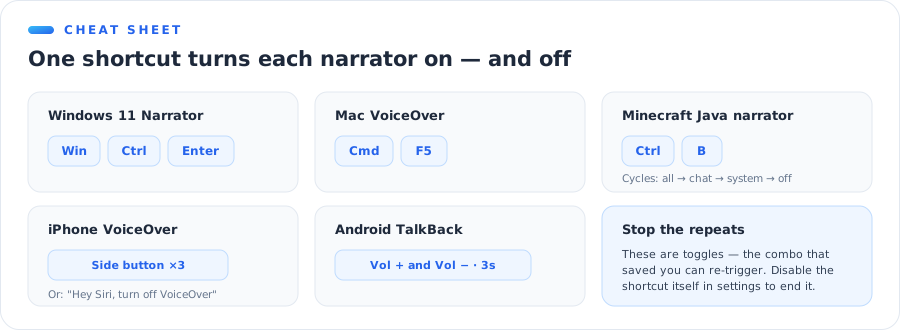
| Platform | Toggle shortcut |
|---|---|
| Windows 11 Narrator | Win + Ctrl + Enter |
| Mac VoiceOver | Cmd + F5 |
| Minecraft Java narrator | Ctrl + B |
| iPhone VoiceOver | Triple-click side button (if configured) — or ask Siri |
| Android TalkBack | Hold both volume keys 3s |
Bookmark-worthy detail: these are toggles. The same combo that saved you can betray you next week. Disabling the shortcut itself (Windows and iPhone both allow this) ends the cycle for good.
Why It Keeps Turning Back On
If you've switched the narrator off twice and it returned, one of four things is happening:
The shortcut is still armed
The most common cause by far. You disabled the feature but not its trigger. On Windows, the fix lives in Settings → Accessibility → Narrator → uncheck Allow the shortcut key to start Narrator. On iPhone, check Settings → Accessibility → Accessibility Shortcut — if VoiceOver is listed there, a triple-click of the side button re-enables it.
Two layers were on at once
You turned off the game's narrator while the system's was also running — so the voice "came back" the moment you opened a menu. Run the 10-second diagnosis again: if the voice exists outside the app, the system layer is still live.
A sync or update restored it
Accessibility settings sync across devices signed into the same account on some platforms, and major OS updates occasionally re-prompt accessibility choices. Nothing is broken — flip it off once more post-update and it stays.
Someone else's profile
On shared consoles and family PCs, the narrator may be enabled on a different user profile — every switch in this guide is per-profile, so check the account that was actually signed in when the talking started.
Turning Text to Speech ON: Word, Docs, and Phones
Same switches, opposite direction — here's the fast path on each platform where people actually want reading aloud:
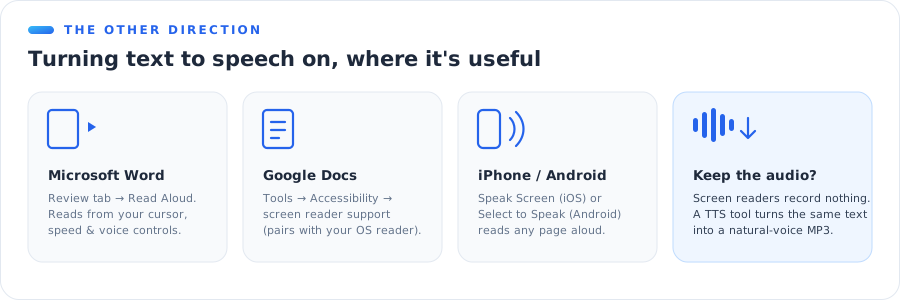
Microsoft Word
Review tab → Read Aloud. Word reads from your cursor, with controls for speed and voice. Available in Microsoft 365 and Word 2019+.
Google Docs
Docs has no native Read Aloud button. Tools → Accessibility → enable screen reader support makes it work with your OS reader — or select your text and use your system's Speak Selection. (Both feel clunky; the MP3 route below is often nicer.)
iPhone & Android
The features you just learned to turn off — Speak Screen on iPhone, Select to Speak on Android — are genuinely great for listening to articles. Two-finger swipe down from the top of the screen reads the whole page on iOS.
PowerPoint and beyond
Presentations are their own topic — narrated slideshows, recorded voiceovers, and accessibility reading each work differently. Our text to speech in Docs, Word & PowerPoint guide covers all three apps in depth.
When the Built-In Voice Isn't the Point
Everything above uses your device's built-in narrator — fine for accessibility, robotic for content.
If the reason you're touching these settings is that you want narration you can keep — an MP3 of an article for your commute, a voiceover for a video, audio of your own notes — a screen reader is the wrong tool. It reads live, sounds mechanical, and records nothing.
The direct route: paste the text into our free text to speech tool — no account needed — pick a natural voice, listen, and download the MP3. For video work specifically, our CapCut text to speech guide covers the full generate-and-import workflow, and the voice cloning vs text to speech comparison explains when it's worth using your own voice instead of a stock one.
The Bottom Line
Every talking device comes down to one of three layers — system, app, or chat — and every layer has a single switch. Diagnose with the "does the voice follow me to another app" test, flip the right toggle, and disable the shortcut that caused it if you never want a repeat.
And when you want speech on your own terms — a real voice, saved as a real file — generate it instead of toggling it.
Turn text into a natural voice you can download — free, no sign-up. Paste any text, pick a voice, get an MP3. Try free text to speech →